CarPlay

The one screen you read
and never touch.

iOS 26 put widgets on the CarPlay dashboard, in one shape only: the square. A dashboard clock has a single job — be legible in one glance, at arm’s length, in changing light — and that is a typography problem with a right answer.

Free on theApp Store See all 120+ designs

Free on the App Store · iOS 16+ · No account, no ads

1:1
the only slot shape
2
day / night palettes
0
taps while driving

CarPlay offers one widget family — the small square — and hands it a slot a little wider than the design. The face is centred at its Home Screen shape rather than stretched, which is why the margins either side are there on purpose.

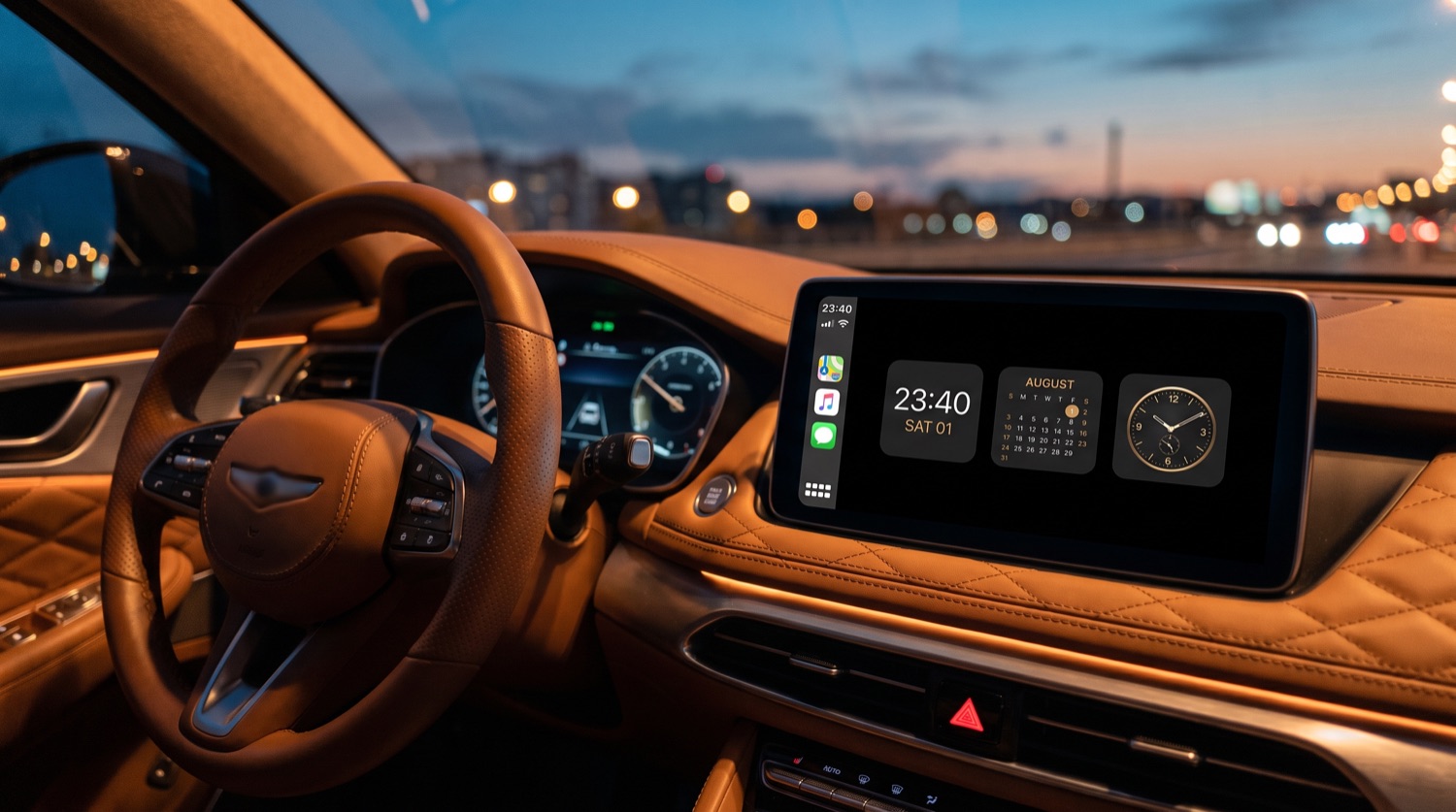
A car dashboard display at dusk showing three square clock and calendar widgets beside the CarPlay sidebar

On the dash

Dusk is the hard case.

Bright enough to read against a low sun, dim enough not to burn a hole in your night vision an hour later. Three square tiles from one family — clock, calendar, dial — sharing a brass accent, so the row reads as one instrument rather than three apps.
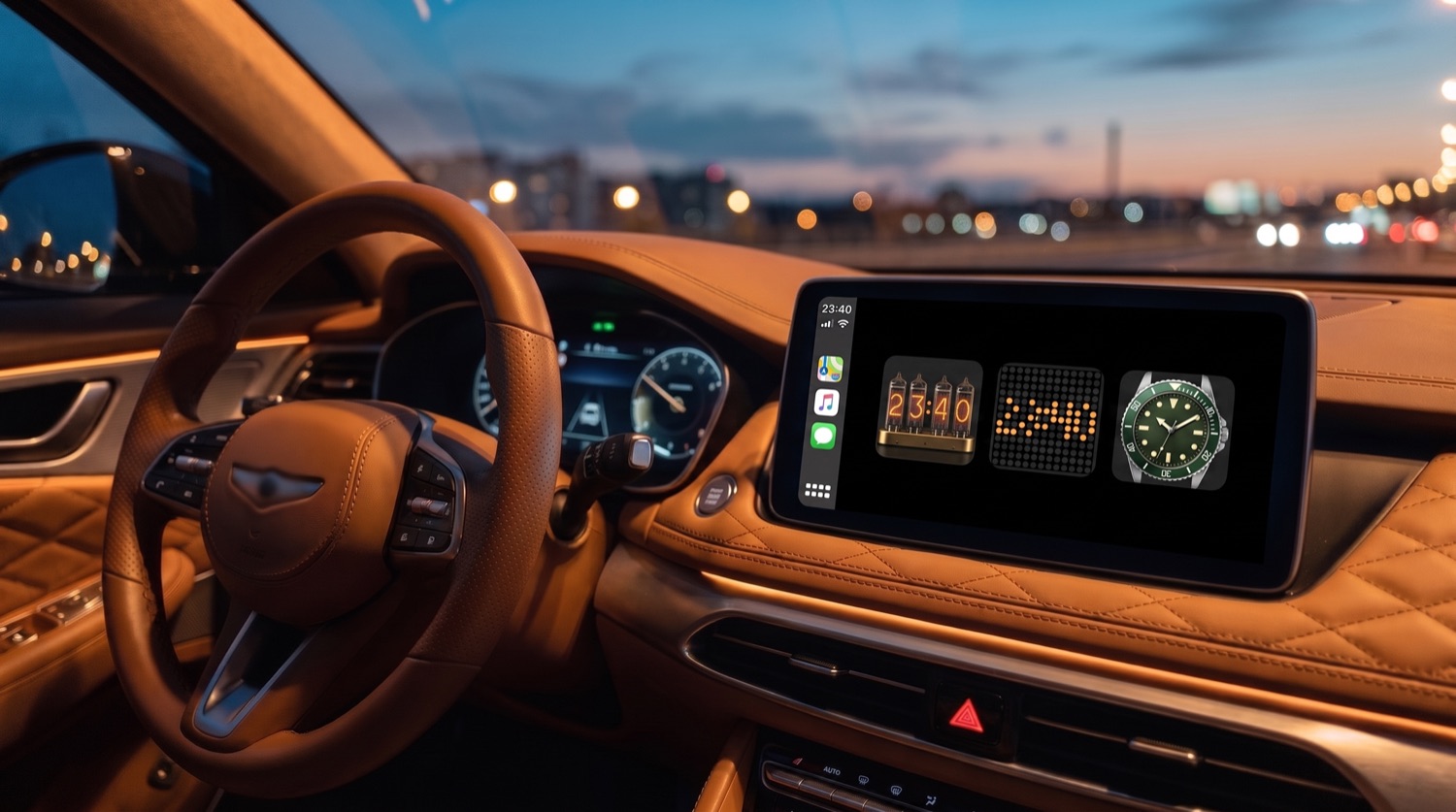
A car dashboard screen at dusk showing a nixie tube clock filling the display
A warmer set for a tan interior — Nixie, Dot Matrix and the Dive dial. The sidebar down the left edge is fixed by CarPlay; everything right of it is the widget row, and the small square family is the only shape on offer there.

Square, and only square

A dashboard slot is a square — the same 1:1 aspect as a small Home Screen widget. There is no wide format and no large one, so a face designed for a medium rectangle has to be re-composed rather than cropped. Every square face here was drawn at that ratio.

Numerals sized for a glance

At driving distance a clock has to survive being read in about 300 milliseconds of peripheral attention. That means one weight, enormous, with generous counters — Bento and the analog dials are built for exactly this.

A second zone for the drive

If you are heading to an airport, the destination’s time on the dash beats doing arithmetic at 120 km/h. Point the face at any of 400+ cities.

Night palette, automatically

After dark the face drops to a dim warm readout instead of glowing white. Same design, half the luminance, none of the dazzle.

Live previews

Square faces that survive a glance

Only square designs are shown — a dashboard has no other slot. Read them from across the room and you have run the test.

DiveAnalog · Luxury
ExplorerAnalog · Luxury
MoonphaseAnalog · Luxury
Word ClockMinimal · Aesthetic
RingsMinimal · Seconds
BentoMinimal · Dark
Calendar NoirCalendar · Dark
PomodoroFocus · Dark

Why a dashboard widget is not just a bigger widget

CarPlay hands a widget a slot that is wider than the square it was drawn for. The lazy response is to stretch the design across it, which warps every proportion the face was built on — a dial goes oval, a minute track stops lining up, type spreads until it stops being the typeface you chose.

WidgetClock does the opposite: in the car a design is laid out at its Home Screen shape and centred in the slot, so a small widget in the car looks like the same small widget on the phone. The margins either side are deliberate.

That is also why only square designs appear on this page. CarPlay offers the small family and nothing else, so a wide face like Bold or Agenda has no slot to live in — it has to be replaced by a square design rather than cropped into one.

Step by step

Add a clock widget to your CarPlay dashboard

  1. 1

    Open Settings on the iPhone

    Not on the car screen — CarPlay widgets are configured from the phone.

  2. 2

    Go to General → CarPlay

    You will see the cars your phone has been paired with.

  3. 3

    Select your car

    Tap the one you are setting up.

  4. 4

    Open Widgets

    This is the dashboard widget list for that car.

  5. 5

    Add WidgetClock and pick a square design

    Only the square family exists here. Choose the face, the city and whether the date shows, then reconnect the phone to the car.

Questions

CarPlay, answered.

What shape are dashboard widgets?

Square, and only square — the same 1:1 slot as a small Home Screen widget. There is no medium or large format on a dashboard, so wide faces like Bold or Agenda have to be swapped for a square design such as Bento, Calendar Noir or one of the dials.

How do I put a WidgetClock widget on my CarPlay dashboard?

On your iPhone open Settings → General → CarPlay, select your car, then open Widgets and add WidgetClock. The face appears on the dashboard the next time you connect. Widgets on CarPlay arrived with iOS 26, so you need that or later.

Will the screen stay on while I drive?

Yes. The fullscreen clock suspends auto-lock while it is open, and re-enables it the moment you leave the view.

Does it dim at night?

Yes, the face drops to a dim warm palette in low light so it does not affect your night vision.

Can I show my destination’s time zone?

Yes — set the face to any of 400+ cities, or enter a raw UTC offset.

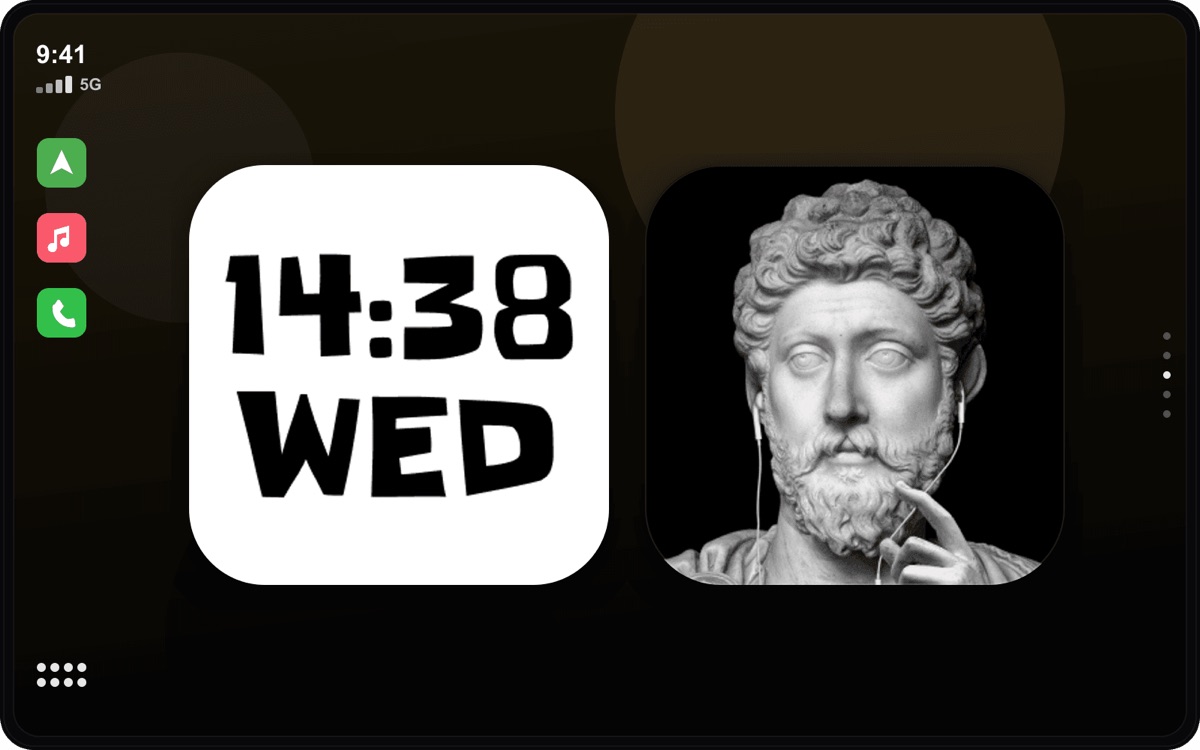
A CarPlay dashboard themed with CarTheme: a large clock widget beside a photo widget

From the same workshop

CarTheme — your CarPlay, your rules.

A clock is one tile. CarTheme does the rest of the dashboard: custom CarPlay widgets, themes for every mood, and a startup sound that plays the moment you connect. Put a WidgetClock face next to it and the whole car matches.

cartheme.app

The one screen you read
and never touch.

Free on the App Store. iOS 16+. No account, no ads, no tracking.