The nightstand
The clock you sleep beside.
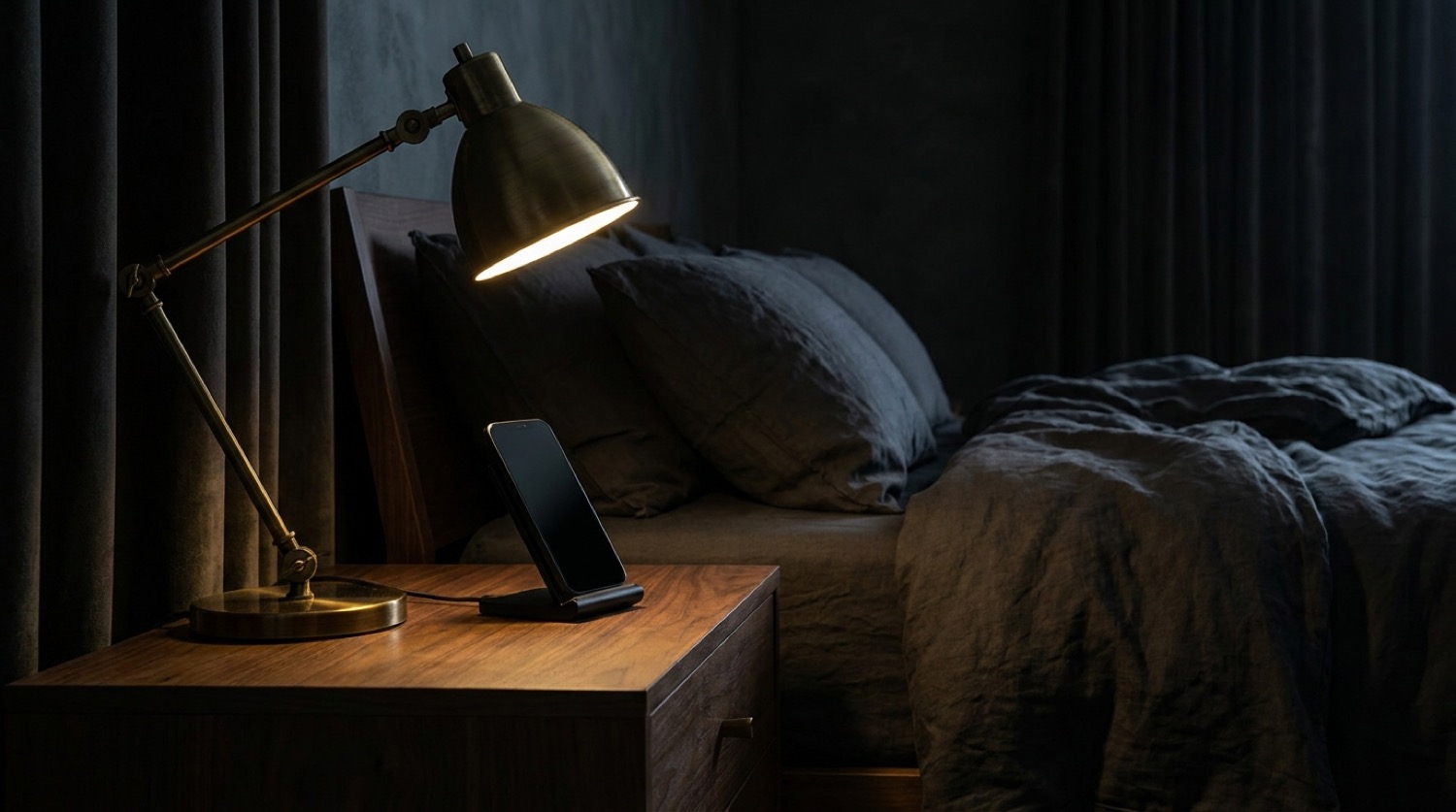
One lamp, one phone on a stand, and a face bright enough to read at 3am without waking you up properly. This is the job StandBy was made for and the reason the night palette matters more than the day one.
iPhone on a stand, on charge, in landscape — iOS gives you a full-screen surface with a live refresh. StandBy is the best clock on your phone and almost nobody uses it.
The nightstand
One lamp, one phone on a stand, and a face bright enough to read at 3am without waking you up properly. This is the job StandBy was made for and the reason the night palette matters more than the day one.
In a dark room iOS shifts StandBy to a red-tinted view. These faces are drawn a second time for that mode instead of being tinted red and hoping.
StandBy is one of the three surfaces on iOS where a clock can genuinely tick. Use it for the faces where the movement matters.
Wide compositions with the time set optically rather than mathematically centred, so it looks right from across a bedroom.
Live previews
Live and ticking.
Step by step
Switch StandBy on. Turn on Night Mode too if you want the red palette.
StandBy requires the iPhone to be charging — MagSafe, a stand or a plugged cable all work.
Landscape and stationary. StandBy appears after a moment.
Swipe left or right to reach the clocks, then swipe up or down to change face.
Press and hold, tap +, and pick a Clock Widgets face from the list.
Questions
StandBy arrived with iOS 17 and works on iPhone models running it. The always-on display on Pro models keeps StandBy visible without a tap; on other models it wakes on movement or touch.
It needs three things at once: charging, landscape, and stationary. Miss any one and iOS stays on the Lock Screen.
iOS shifts the image slightly over time to prevent that, and the dark faces here light very few pixels to begin with.
Free on the App Store. iOS 17+. No account, no ads, no tracking.